Ever wondered what Claude Code is actually doing while it works? Every file it reads, every command it runs, every permission it requests. Claude Code exposes all of this through a hook system that lets you intercept and observe each step.
In this post, you’ll learn what hooks are, how to set them up, and how to use the Coding Agent Explorer to visualize hook events in real time.
The post is part of a multi-part series on the Coding Agent Explorer, an open-source .NET tool for inspecting what AI coding agents do under the hood.
- Part 1 – Introducing the Coding Agent Explorer (.NET)
- Part 2 – Exploring Claude Code Hooks with the Coding Agent Explorer
- Part 3 – Visualizing Claude Code MCP Requests with the Coding Agent Explorer
To make this more concrete, the diagram below shows how Claude Code emits hook events, how each event triggers a call to HookAgent, and how those events are then forwarded to the Coding Agent Explorer for visualization.
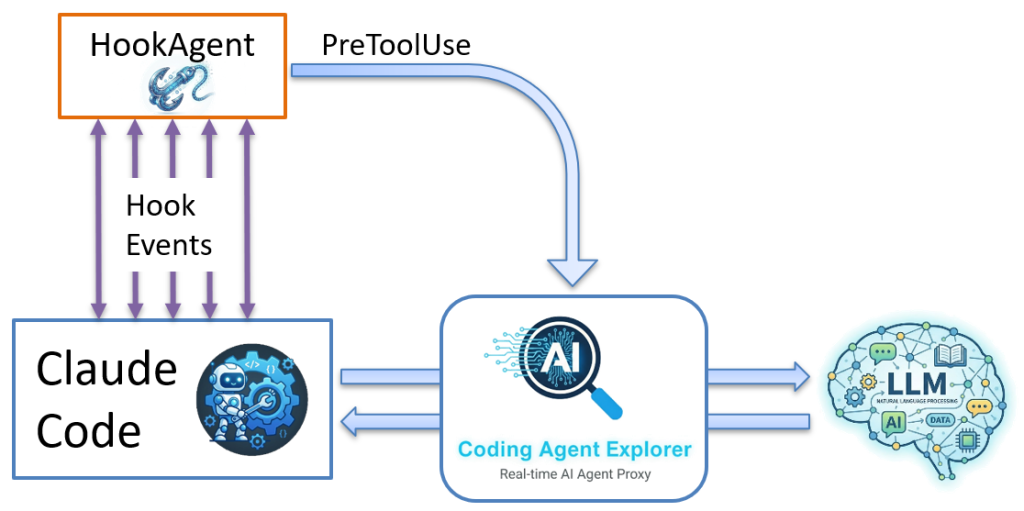
Each time a hook event occurs, Claude Code invokes HookAgent, which receives the event data and forwards it to the Coding Agent Explorer, where it appears in the dashboard in real time.
What Are Claude Code Hooks?
When things happen inside Claude Code, it can execute a hook. For example, when Claude Code:
- Reading or writing a file
- Running a shell command
- Requesting a permission
- Starting or ending a session
- Submitting a user prompt
The diagram below highlights several of the hook events that Claude Code generates during execution.
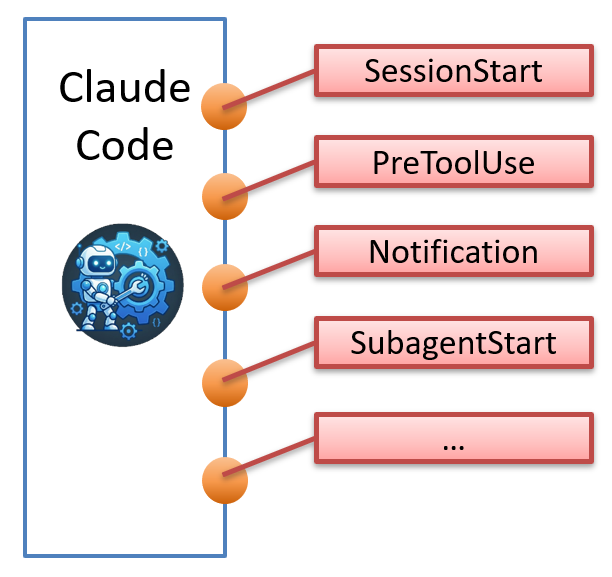
A hook is simply a shell command that Claude Code runs at that point, passing a JSON payload describing the event via standard input (stdin). This gives you a way to extend, observe, and control Claude Code’s behavior from the outside.
What can hooks be used for?
Hooks turn Claude Code from a black box into something you can observe, control, and extend. In practice, they let you:
- Enforce security policies before tools run
- Log and audit tool usage
- Trigger external automation
- Notify external systems (Slack, CI, etc.)
In short, hooks let you move from observing the agent to controlling how it behaves.
Example: Block access to secret files
A classic use case is intercepting PreToolUse events to block the agent from accessing files it should not touch.
Let’s say we have a file named Secret.key that we never want Claude Code to read. When the agent attempts to access it, your PreToolUse hook intercepts the request, inspects the file path, and blocks the operation by returning a non-zero exit code with an error message. Claude Code respects the response and continues without ever opening the file.
The diagram below illustrates how the PreToolUse hook intercepts and blocks the request.
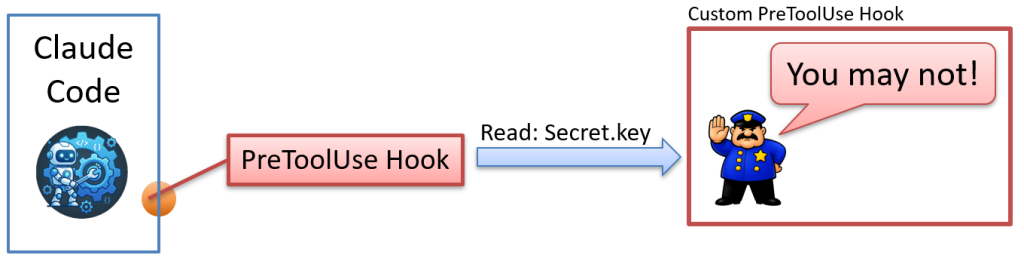
Here’s what Claude Code sends to the hook via stdin when it tries to read secret.key:
					{
  "session_id": "9ec4714b-3475-4773-b4af-3f70d7fe68f7",
  "transcript_path": "C:\\Users\\Tore\\.claude\\projects\\C--Conf\\9ec4714b-3475-4773-b4af-3f70d7fe68f7.jsonl",
  "cwd": "C:\\MyApp",
  "permission_mode": "default",
  "hook_event_name": "PreToolUse",
  "tool_name": "Read",
  "tool_input": {
    "file_path": "C:\\MyApp\\Secret.key"
  },
  "tool_use_id": "toolu_01BQ4EQBtbxbFRoTEc1CXRgf"
}
How can a hook control Claude Code?
Hooks are not just for observing behavior; they can actively influence what Claude Code is allowed to do.
When a hook runs, it returns an exit code and an optional message. Claude Code uses this response to decide what happens next:
- Exit code 0
allow the action to proceed - Non-zero exit code
block the action
The optional message is just as important. When an action is blocked, the message is passed back to Claude Code and becomes part of the model’s context. Instead of just failing, the agent receives feedback it can use to adjust its behavior.
In other words, the exit code enforces the decision, while the message helps guide what happens next
Which events can we hook into?
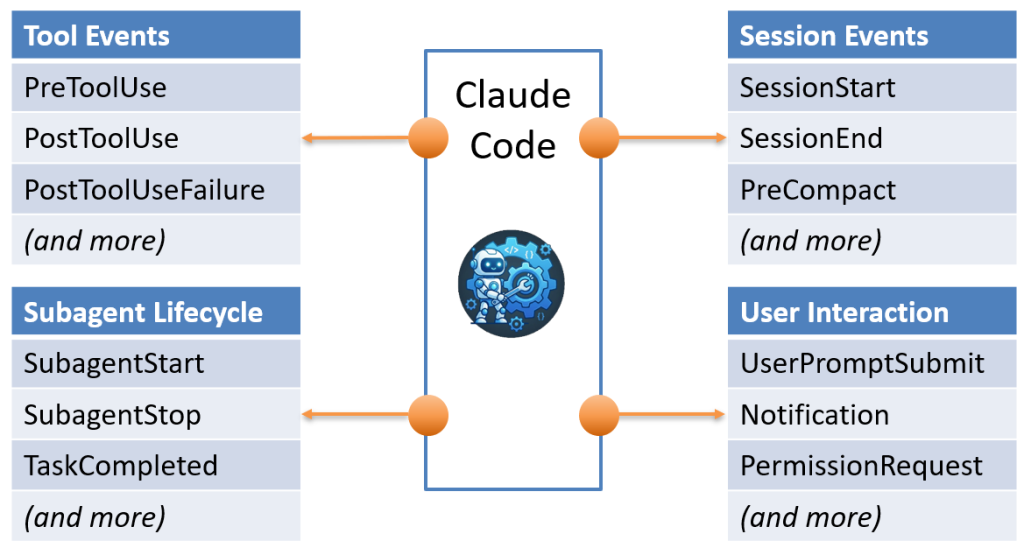
Claude Code provides four categories of hookable events:
- Tool Events – PreToolUse, PostToolUse, PostToolUseFailure,..
- Session Events – SessionStart, SessionEnd, PreCompact,…
- Subagent Lifecycle – SubagentStart, SubagentStop, TaskCompleted, …
- User Interaction – UserPromptSubmit, Notification, PermissionRequest, …
The diagram below gives a high-level overview of how hook events are grouped and emitted by Claude Code.
A complete reference for all events is included later in this post.
Why Hooks Matter for Every Project
Beyond observability, hooks are one of the most important control points available in any Claude Code project. By registering a PreToolUse hook, you get to run your own code before any tool executes, giving you the opportunity to inspect, block, or log every action the agent attempts.
This is a practical and effective way to restrict how Claude Code interacts with tools and files. You can block reads and writes to sensitive files and directories (credentials, .env files, private keys, config folders), prevent specific shell commands from running, and define clear rules around what the agent is allowed to touch.
Because your hook runs in your environment, it is always invoked before the tool executes and cannot be skipped through prompt manipulation alone. However, the effectiveness of the protection depends on how your hook validates and enforces its rules.
Hooks also provide a meaningful defense against prompt injection attacks. If a malicious file or web page contains hidden instructions telling Claude Code to exfiltrate data or modify a sensitive file, a PreToolUse hook can catch the attempt before the tool executes and block it with a non-zero exit code. Claude Code reads your error message and stops, preventing the action from reaching the file system.
In practice, hooks act as a powerful guardrail and auditing layer. For stronger guarantees, especially when shell access is enabled, they should be combined with environment-level controls such as filesystem restrictions or sandboxing.
In other words, hooks are one layer in a broader security model and should be combined with other controls for robust protection.
How to Observe Claude Code Hooks in Real Time
But how can we observe exactly when hooks are called and what data is passed to them? That is where the Coding Agent Explorer and its HookAgent tool come in.
Here is what the rest of this post covers:
- How the HookAgent tool bridges Claude Code and the dashboard
- How to set everything up in a few minutes
- What you can actually see once it is running
Introducing HookAgent
HookAgent is a small companion CLI tool that ships with the Coding Agent Explorer. It acts as the bridge between Claude Code’s hook system and the Coding Agent Explorer.
The diagram below shows how HookAgent receives hook events from Claude Code and forwards them to the Coding Agent Explorer.
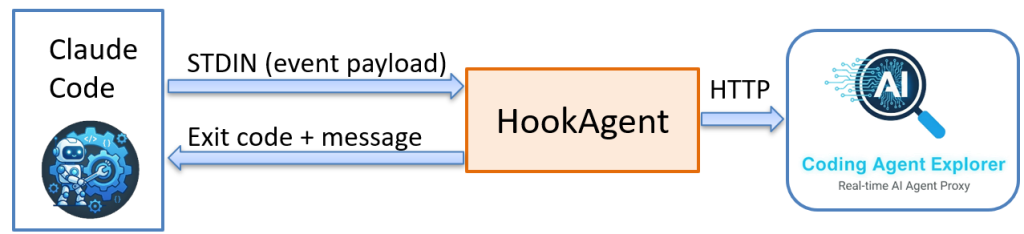
To use it, configure Claude Code to call HookAgent for each hook event you want to capture. From that point on, every time Claude Code fires a hook, it runs HookAgent and passes the event data via stdin.
HookAgent’s core responsibility is simple:
- Read the incoming event from stdin
- Attach Claude Code environment variables like CLAUDE_PROJECT_DIR and CLAUDE_SESSION_ID
- Forward everything to the Coding Agent Explorer via a single HTTP POST request.
- When the Explorer receives a hook event, it updates the dashboard in real time.
If the Explorer is not running when a hook fires, HookAgent exits immediately and Claude Code continues normally. Observability is always optional.
FACT: stdin and exit codes
stdin (standard input) is a standard way for one process to send data to another; in this case, Claude Code passes the hook event JSON as text to HookAgent via stdin.
The exit code is how a process reports the result back: 0 (zero) means success, while any non-zero value signals an error and can be used to block an action.
Getting Started with HookAgent
Getting hooks running takes about five minutes. Here is what you need.
Prerequisites
Before you get started, make sure you have the following installed and ready:
- .NET 10 SDK installed.
- Coding Agent Explorer source code downloaded.
- Claude Code installed
See Introducing the Coding Agent Explorer for installation and setup instructions.
Step 1: Build HookAgent
Open a terminal in the root folder of the Coding Agent Explorer and run the appropriate publish script for your platform:
Windows:
publish.bat
macOS / Linux:
bash publish.sh
This builds both the Coding Agent Explorer and HookAgent into the Published folder:
- Published/CodingAgentExplorer
The proxy and dashboard. - Published/HookAgent/HookAgent.exe
HookAgent (Windows: .exe, macOS/Linux: no extension).
Step 2: Create a working directory
Create a fresh folder where you will run claude (in this example, we name it MyApp), then copy the HookAgent folder from the Published folder into it. After copying, your working directory should look like this:
Windows:
C:\MyApp\HookAgent\HookAgent.exe
macOS / Linux:
~/MyApp/HookAgent/HookAgent
Step 3: Configure Claude Code hooks
The Coding Agent Explorer includes ready-to-use sample settings.json files for each platform.
- Create a .claude folder in your working directory (MyApp) if it does not already exist.
- Copy the sample settings.json for your platform into that .claude folder.
Use one of these sample files:
- Windows: HookAgent\Sample-Settings-Windows\settings.json
- macOS / Linux: HookAgent/Sample-Settings-LinuxMacOS/settings.json
Your working directory should now look like this:
Windows:
C:\MyApp\
      HookAgent\HookAgent.exe
     .claude\settings.json
macOS / Linux:
~/MyApp/
    HookAgent/HookAgent
    .claude/settings.json
This registers HookAgent for all Claude Code hook events. Feel free to remove any events you do not need. The full list of supported events and the settings.json syntax is documented in the Claude Code hooks reference.
The “matcher”: “.*” field is a regex pattern applied to the tool name. .* matches all tools, so the hook fires for every tool call under that event. You can narrow it down. For example, “matcher”: “Bash” would only fire for Bash tool calls. Not all events support a matcher.
Note: Claude Code runs hook commands through bash on all platforms, including Windows. Always use forward slashes in the command path. The Windows sample uses HookAgent/HookAgent.exe. The macOS/Linux sample uses HookAgent/HookAgent with no .exe extension.
Step 4: Verify the hooks are registered
Start Claude Code from your working directory and run the /hooks command:
/hooks
Claude Code will list every configured hook event and the command registered for each one. You should see all hook events pointing to HookAgent. If the list is empty or events are missing, check that .claude/settings.json is in the right folder and that the JSON is valid.
Once you have confirmed the hooks are registered, exit Claude Code and move on to the next step.
Step 5: Start the Coding Agent Explorer
From the Coding Agent Explorer folder, start the Explorer:
dotnet run
On Windows the browser opens automatically. On macOS and Linux, open the dashboard manually at https://localhost:5001.
Don’t forget to enable the proxy in Claude Code as described in the previous post in this series.
Step 6: Test HookAgent
With the Explorer running, test HookAgent from your working directory before starting a full Claude Code session:
Windows (PowerShell):
{"hook_event_name":"UserPromptSubmit","session_id":"test"}' | HookAgent\HookAgent.exeWindows (cmd):
echo {"hook_event_name":"UserPromptSubmit","session_id":"test"} | HookAgent\HookAgent.exemacOS / Linux:
echo '{"hook_event_name":"UserPromptSubmit","session_id":"test"}' | HookAgent/HookAgentA UserPromptSubmit event should appear in the Conversation View immediately. Make sure the “Hook Events” checkbox in the Conversation View is checked. If the Explorer is not running, the command exits silently and Claude Code is never affected.
Step 7: Run Claude
From your working directory (C:\MyApp on Windows, ~/MyApp on macOS/Linux), run:
claude
Hook events will start appearing in the Conversation View as soon as Claude Code starts up, and then for every action it takes. Make sure the “Hook Events” checkbox in the Conversation View is checked, otherwise hook events will be hidden.
Seeing Claude Code Hooks and Tool Calls in Real Time
Once everything is running, the Conversation View becomes a live timeline of everything Claude Code does, with hook events interleaved alongside the API calls. You get a complete picture that was previously invisible.
Here is what a typical interaction looks like on the timeline when you ask Claude Code to fix a bug:
13:42:01 SessionStart
13:42:03 UserPromptSubmit "Fix the null reference exception in UserService.cs"
13:42:03 POST /v1/messages (Claude thinks about what to do)
13:42:05 PreToolUse Read (about to read UserService.cs)
13:42:05 PostToolUse Read (file contents returned)
13:42:05 POST /v1/messages (Claude analyses the code)
13:42:08 PreToolUse Edit (about to write the fix)
13:42:08 PostToolUse Edit (file updated)
13:42:08 POST /v1/messages (Claude confirms the fix)
13:42:10 Stop
In under 10 seconds, Claude Code made 3 LLM calls and 2 tool calls. Without hooks, you only see the API requests. With hooks, you see the full story.
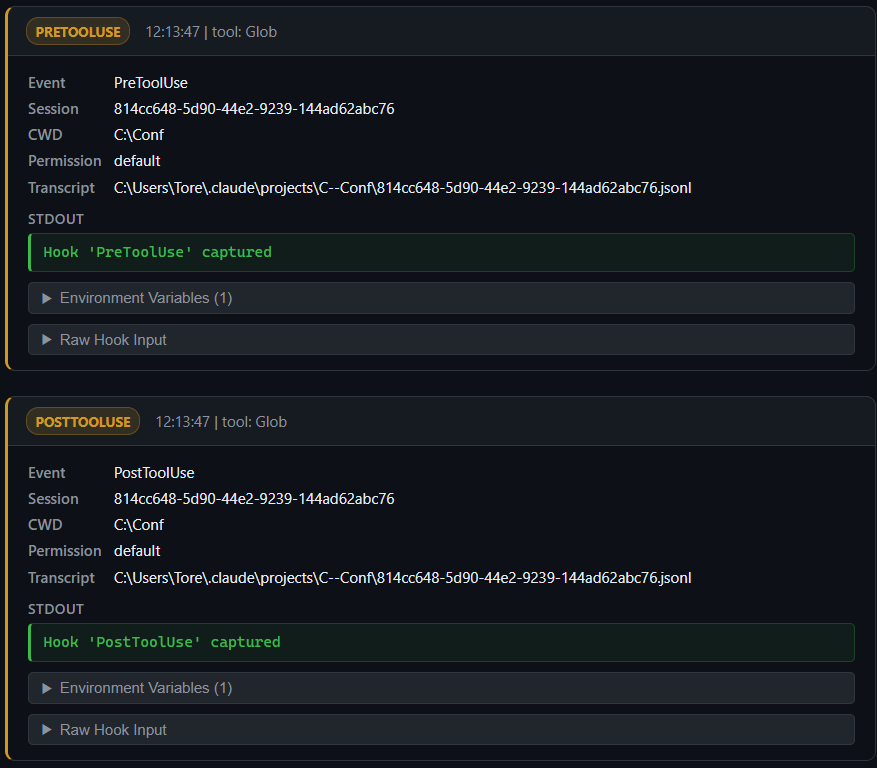
Clicking any hook event in the timeline opens the full JSON payload. For a PreToolUse event, for example, you see the tool name, the exact input parameters, the session ID, and the working directory. For a PermissionRequest, you see exactly what Claude Code wants to do and why.
					{
  "session_id": "814cc648-5d90-44e2-9239-144ad62abc76",
  "transcript_path": "C:\\Users\\Tore\\.claude\\projects\\C--Conf\\814cc648-5d90-44e2-9239-144ad62abc76.jsonl",
  "cwd": "C:\\Conf",
  "permission_mode": "default",
  "hook_event_name": "PreToolUse",
  "tool_name": "Glob",
  "tool_input": {
    "pattern": "**/UserService.cs"
  },
  "tool_use_id": "toolu_019GP34HeFh8N4QkWQWdAyUA"
}
Why This Is Useful in Workshops
I use the hooks feature extensively in my workshops on agentic development. The question I hear most often from developers who are new to coding agents is:
But what is it actually doing? And what data is actually passed to my hooks?
The Conversation View with hooks answers that question directly. You can project the dashboard on a shared screen and watch every session event, tool call, and permission request appear in real time as Claude Code works. It turns the agent from a magic black box into a system that developers can reason about, question, and understand.
In my experience, once developers see the full picture, a lot of things click. They understand why the agent reads files before editing them. They see how it loops back to the LLM after each tool call. They notice where token costs accumulate. And they start writing better prompts as a result.
For more details about my workshops and training classes, visit tn-data.se/training.
Claude Code Hook Events Reference
As of today, Claude Code supports these hook events. For the full and up-to-date reference, see the Claude Code hooks documentation.
- SessionStart
Session begins or resumes - UserPromptSubmit
User submits a prompt - PreToolUse
Fires before any tool executes - PostToolUse
Fires after a tool succeeds - PostToolUseFailure
Fires after a tool fails - PermissionRequest
Claude Code requests permission to perform an action - Stop
Claude finishes responding - SubagentStart
A subagent is started - SubagentStop
A subagent finishes execution - Notification
Claude Code sends a notification - PreCompact
Fires before context compaction - ConfigChange
A settings file changes - TeammateIdle
Agent team coordination event - TaskCompleted
A task is marked as complete - SessionEnd
Session terminates
The PreToolUse and PostToolUse events are the most useful in practice. They fire for every tool call, whether it is a file read, a bash command, a web fetch, or an MCP tool invocation. Together, they give you a complete record of every action the agent takes.
- PreToolUse is where you enforce rules: block access to sensitive files, reject dangerous shell commands, or log what the agent is about to do.
- PostToolUse fires after a tool succeeds and is where you react to what just happened. When a tool fails, PostToolUseFailure fires instead and provides the error details.
Common uses include:
- Run your test suite automatically after the agent edits a file
- Trigger a linter or code formatter after a write
- Log the completed action to an audit trail
- Notify an external system (Slack, CI pipeline) that a file changed
- Inspect the tool output before the agent continue
What’s Next: Inspecting Claude Code with MCP Observer
This post covered the hooks feature. The next post in this series will look at the MCP Observer, a new feature that lets you intercept and inspect traffic between Claude Code and any Model Context Protocol (MCP) server. If you’ve ever wanted to understand how MCP tools like Microsoft Learn or Context7 actually work under the hood when Claude Code uses them, that post is for you.
In the meantime, the full project is open-source and available on GitHub: github.com/tndata/CodingAgentExplorer.
I Want Your Feedback
The Coding Agent Explorer is open-source and I want to improve it with your help. If you find a bug, have a feature request, or want to share your experience, please create an issue on GitHub. I read every issue and appreciate all feedback.
Contributions are also very welcome. The codebase is intentionally kept simple (a single NuGet dependency, a vanilla JS frontend) to make it easy for anyone to jump in.
Want to Learn Agentic Development?
If this topic interests you, I’d love to help you go deeper. I’m currently working on a workshop called Agentic Development with Claude Code, where we explore how coding agents work, how to use them effectively, and how to build workflows around them. The Coding Agent Explorer is one of the tools I to use to help participants see what is really happening behind the scenes.
Learn more about my AI and Claude Code workshops and courses: Agentic Development and AI workshops.
I also give a presentation called How Does a Coding Agent Work? that covers the architecture and inner workings of AI coding agents. Contact me if you’d like me to run this at your company or conference.
Claude Code Hooks FAQ
Here are answers to common questions about how hooks work in Claude Code, how to configure them, and what to expect in practice.
Does HookAgent slow down Claude Code?
No. HookAgent makes a single HTTP POST per event and exits. The call is fast, and if the dashboard is not running it returns immediately. In practice, you will not notice any difference in Claude Code’s responsiveness.
Do I need to change my project or code to use hooks?
No. You only need to create or update the .claude/settings.json file in the directory where you run claude. Nothing in your project code changes.
Can I use only some of the hook events?
Yes. You can remove any hook entries from settings.json that you don’t want. For example, if you only care about tool calls, keep PreToolUse and PostToolUse and remove the rest.
Does this work on macOS and Linux?
Yes. Use publish.bat on Windows or bash publish.sh on macOS and Linux. Each script detects the current platform and builds a single-file HookAgent executable for it. On Linux and macOS the executable has no .exe extension, so use HookAgent/HookAgent as the command path in your settings.json.
Is this tool suitable for production use?
No. The Coding Agent Explorer is designed as a development and teaching tool. It is not intended for production use.
Can I block all sensitive file access using PreToolUse?
Not completely. PreToolUse lets you block direct tool calls (like reading secret.key), but it does not provide a true sandbox.
For example, the model might:
- Generate a script (e.g. Bash or PowerShell) that reads files indirectly
- Request access to a broader directory (e.g. “load all files in this folder”)
- Use other tools or workflows that bypass your specific path checks
If you give Claude Code shell access (Bash, command line, PowerShell, etc.), it can effectively do anything you can do within that environment; including reading sensitive files through indirect means.
Even for direct tool calls, your hook logic must be implemented carefully. Naive checks (for example simple string matching on file paths) can sometimes be bypassed using variations in path representation, encoding, or traversal patterns. In practice, you need to normalize and validate inputs rigorously.
In other words, you are filtering requests, not enforcing OS-level isolation.
What does it take to truly secure file access?
If you need strong guarantees, you need to move beyond hooks and enforce restrictions at the environment level:
- Run Claude Code in a sandbox
(container, VM, or restricted workspace) - Limit filesystem permissions
(only expose allowed directories) - Disable or tightly restrict shell access
(for example by disabling the Bash tool or restricting what commands can be executed, since it can be used to invoke other interpreters like PowerShell or cmd) - Use allowlists instead of blocklists
(explicitly permit safe paths only)
Hooks are best used as a guardrail and observability layer, not as your primary security boundary.
About the Author
Tore Nestenius is a Microsoft MVP in .NET and a senior .NET consultant, instructor, and software architect with over 25 years of experience in software development. He specializes in .NET, ASP.NET Core, Azure, identity architecture, and application security, helping development teams design secure, scalable, and maintainable systems.
Tore delivers .NET workshops, Azure training, and technical presentations for companies and development teams across Europe. His focus is on practical, hands-on learning that helps developers understand modern tooling, cloud architecture, and AI-assisted development.
Learn more on his .NET blog at nestenius.se or explore his workshops and training at tn-data.se.